

Exporting and Backing Up Your Data
Your church's information belongs to you. Empower gives you two ways to get a copy of it:
Data Export makes a spreadsheet of the people, households, activity members, contributions, or pledges you choose, with only the columns you pick.
Database Backup makes a full copy of whole areas of your database, such as all membership and all contributions.
Use Data Export when you need a list for a task, such as a phone list or a year of giving for your treasurer. Use Database Backup when you want a complete copy to keep on file.
Export a list with Data Export
From the top menu, click Utilities, then Data Export.
On the left, pick what you want to export: New People Export, New Household Export, New Activity Member Export, New Contributions Export, or New Pledges Export.
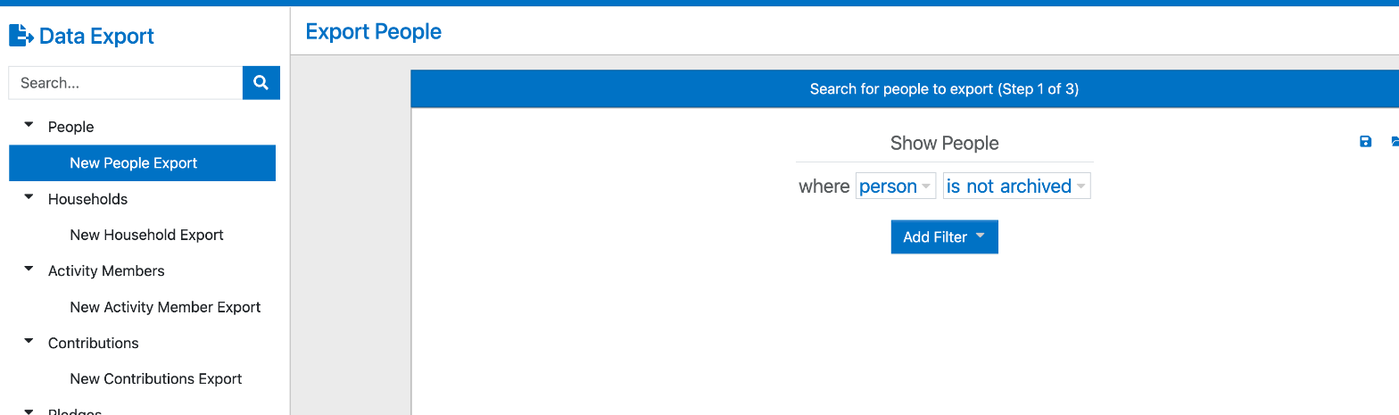
Step 1: choose who to include. By default, the export includes everyone who isn't archived. To narrow it down, click Add Filter and pick a filter, such as personal status or last name. Then click Next.
Step 2: choose the columns. The Available list on the left shows every field you can export. Click the blue plus sign next to a field to move it to the Included list on the right. You can also type in Search to find a field, or click Add All to include everything. To take a field out, click the red minus sign next to it.
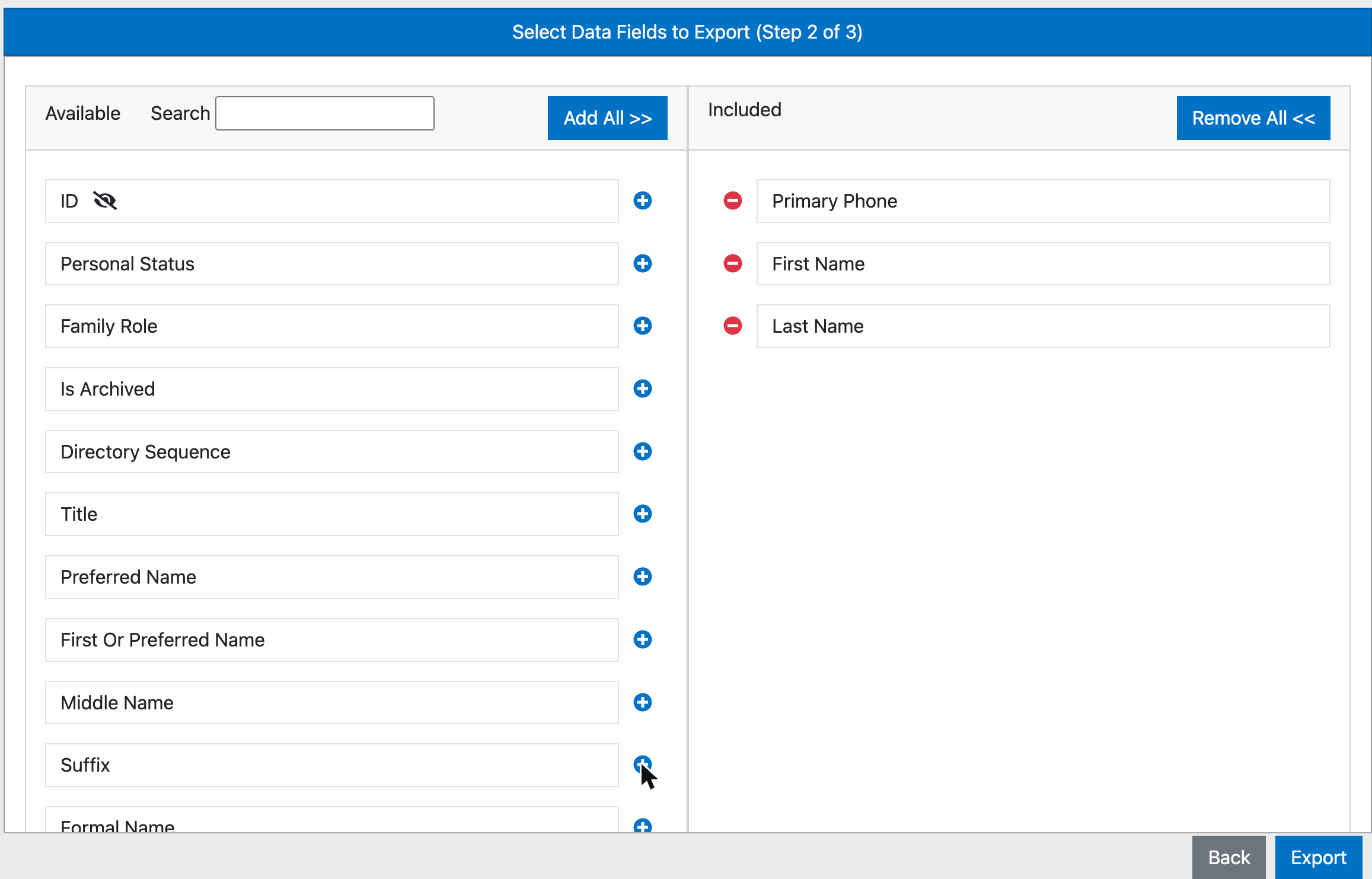
The fields show up in the file in the order they appear in the Included list.
Click Export, then follow the last step to save the file to your computer.
You can open the file in Excel, Google Sheets, or any other spreadsheet program.
Make a full backup
From the top menu, click Utilities, then Options, then Database Backup.
Check each area you want in the backup: membership (households, people, and activities), attendance, attachments, pictures, contributions, and events.
Click Create Backup.
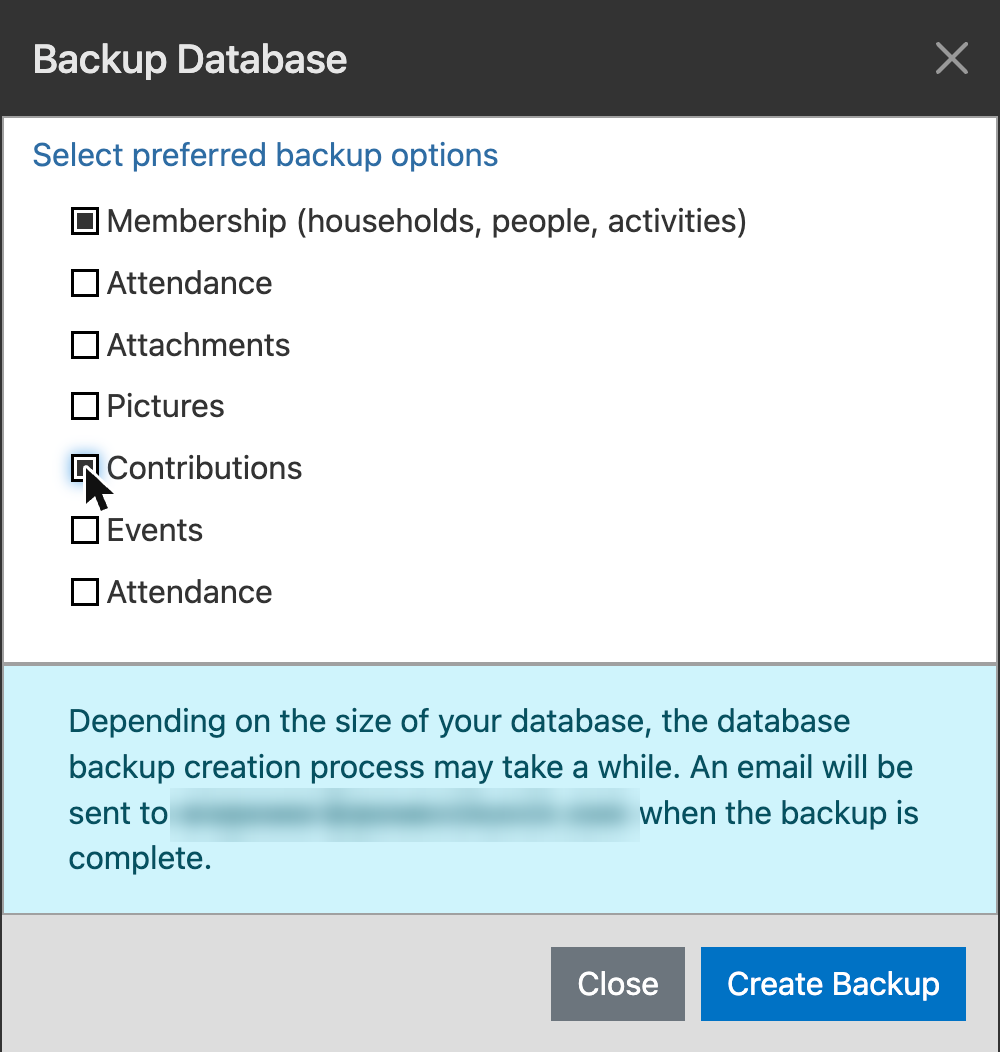
A large database can take a while to back up. You don't need to wait on the page. Empower emails you when the backup is ready, at the address shown in the blue box.
Good to know
Exports and backups include private information, such as addresses, phone numbers, and giving. Store the files somewhere safe, and delete copies you no longer need.
If you'll run the same export often, use the save icon in step 1 to save your filters. Next time, open them with the folder icon.
Need help getting your data out? Contact Empower support and we'll walk you through it.