

Add Staff Users and Reset Passwords
Empower includes unlimited users, so everyone on your staff and volunteer team can have their own sign-in. Here's how to add someone, choose what they can see, and help them back in if they forget their password.
Add a staff user
Go to Utilities > Security.
Click Add.
For Security Identity Type, choose User.
Enter the person's User Name and Email.
If you'd like, check a role such as Administrator or Data Entry to give them that role's permissions.
Click Save changes.
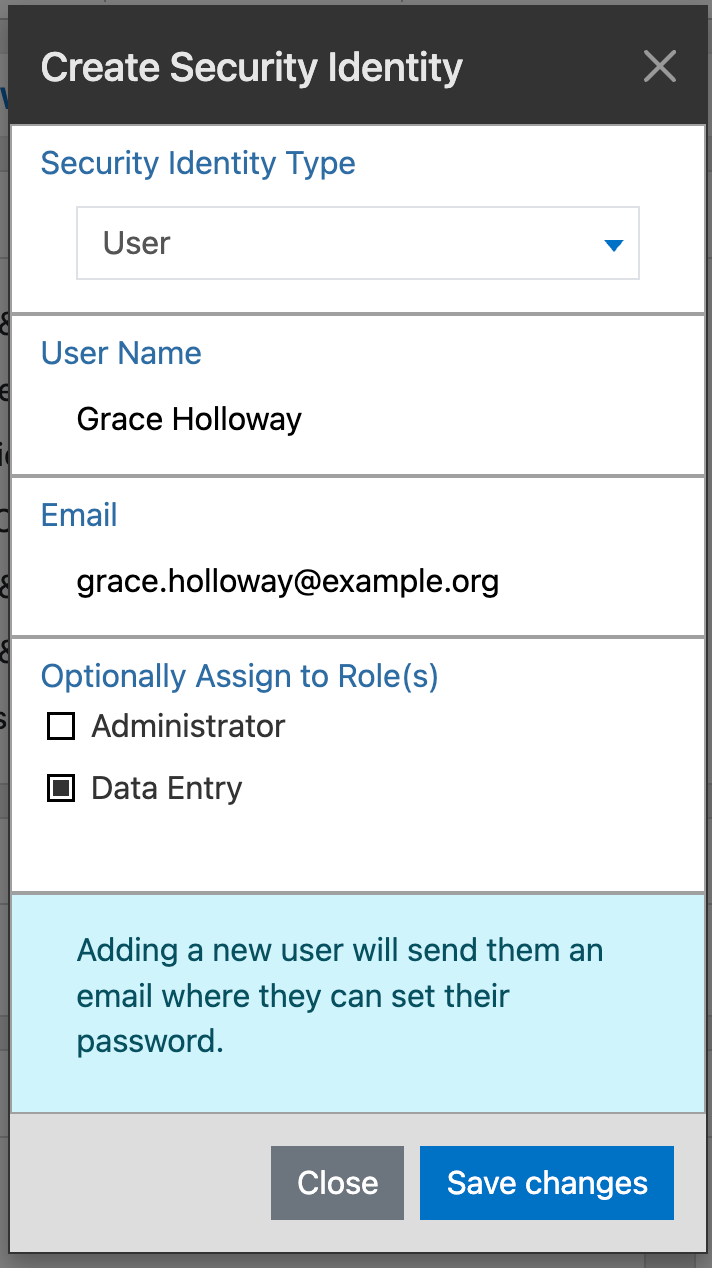
Empower emails the new user a link where they can set their own password.
Choose what they can see and do
When you select a user on the Security page, their permissions appear in groups: Membership, Messaging, Events, Check In, Billing, Member Portal, Contributions, and Audit. Click the pencil icon on a group to change it.
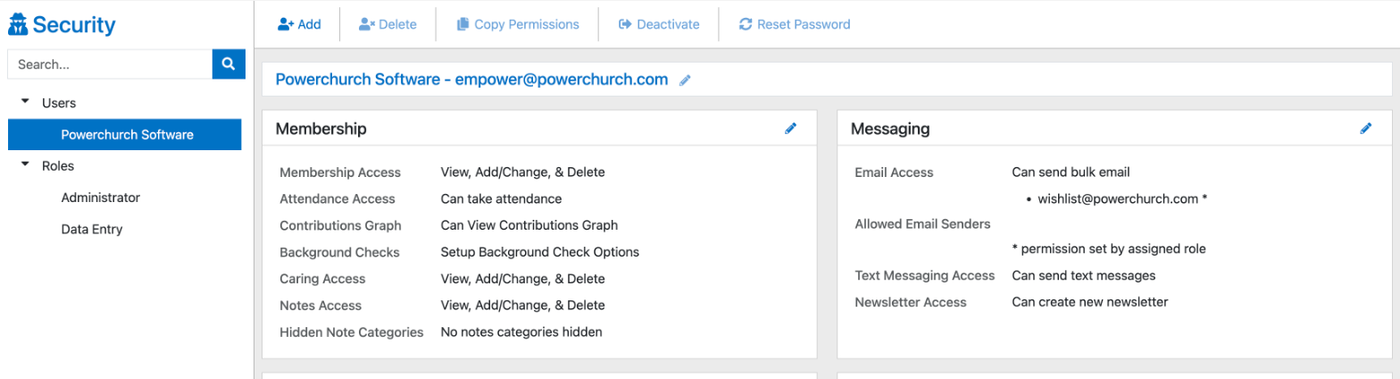
Roles let you set permissions once and give them to several people.
To give a new user the same access as someone else, select the new user, click Copy Permissions, and choose the user to copy from. Empower copies that person's permissions and adds their roles.
Reset a password
For someone on your team
If you're an administrator, go to Utilities > Security, select the user, and click Reset Password. Empower emails them a link to choose a new password.
For yourself
Go to your church's Empower sign-in page.
Click Forgot password?
Enter the email you sign in with and click Reset Password.
Check your email for a message from Empower.
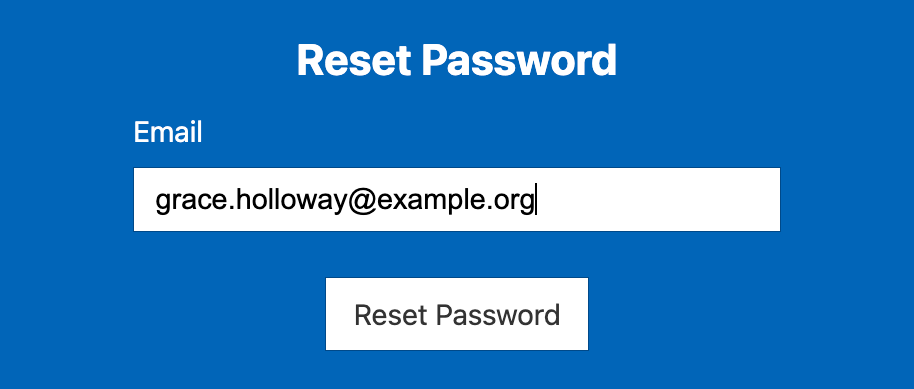
Tip: If Forgot password? takes you to a page that says Your session has ended, go to your church's Empower address followed by /Login (for example, yourchurch.empowerchms.com/Login), then click Forgot password? again.
Turn off someone's access
When someone leaves your team, select them on the Security page and click Deactivate.
Related articles
Setting User Roles and Permissions
Basic Navigation of Empower